
Timeline
Overview
Every record in Beegle — accounts, goals, individuals, policies, key dates, financial strategies, and more — has a Timeline showing a chronological history of commentary and activity attached to that record.
Where to find it
The Timeline appears as a collapsible section on each record card across Beegle's pages (e.g. your list of financial strategies, accounts, or goals). It is collapsed by default — click Timeline to expand it.
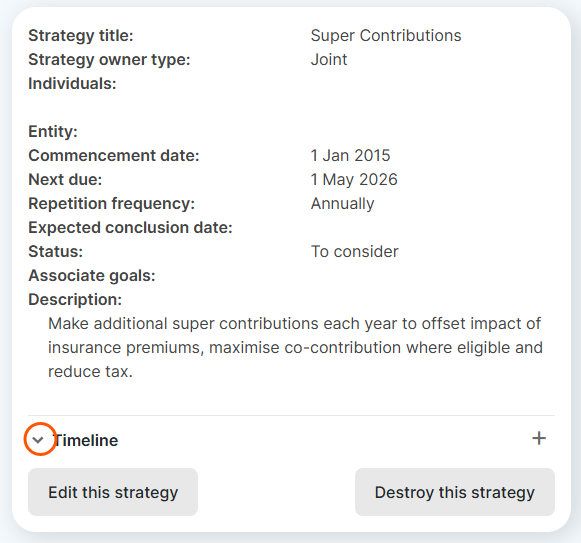
What the Timeline shows
Each entry displays:
- An icon indicating the type of entry
- The title of the entry
- A judgement status badge if the entry is a Record of Judgement (Settled, Conditional, or Unsettled)
- The date last modified and the name of the user who last edited it
Entries are sorted newest-first, with 10 per page.
Viewing an entry
Click any entry to expand it inline and read its full details. From the expanded view you can also Edit or Destroy the entry.
Adding a new entry
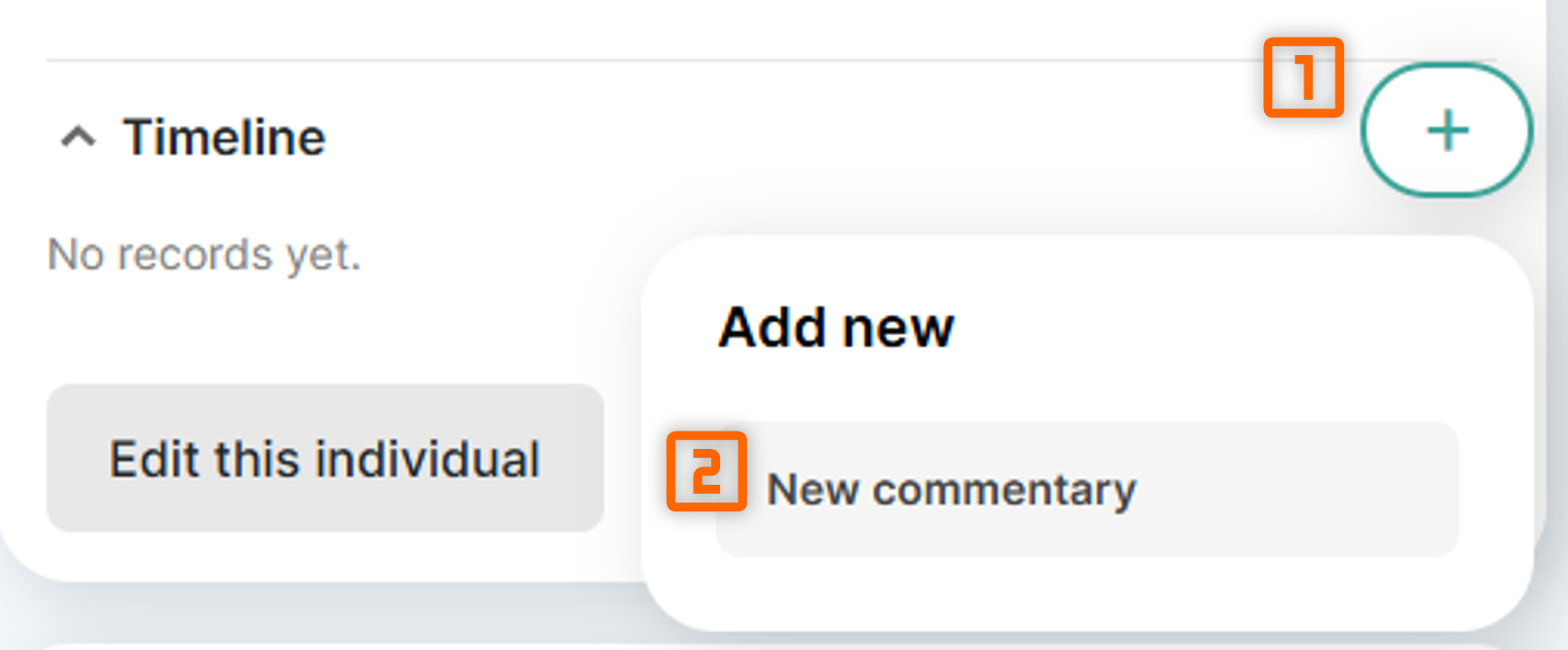
Entry types
The Timeline is designed to surface activity from multiple sources. Currently it shows:
| Type | Description |
|---|---|
| Record Commentary | Written notes and documents relating to the record |
| Adviser Judgement | Written notes and documents, detailing the adviser's judgment in making a recommendation or implementation. Includes whether the judgement status is unsettled, conditional or settled. |