Managing Subscriptions
Following are the details to manage your organisation's client group subscriptions.
Only users with administration privileges will be able to manage or view subscriptions.
Viewing all Subscriptions
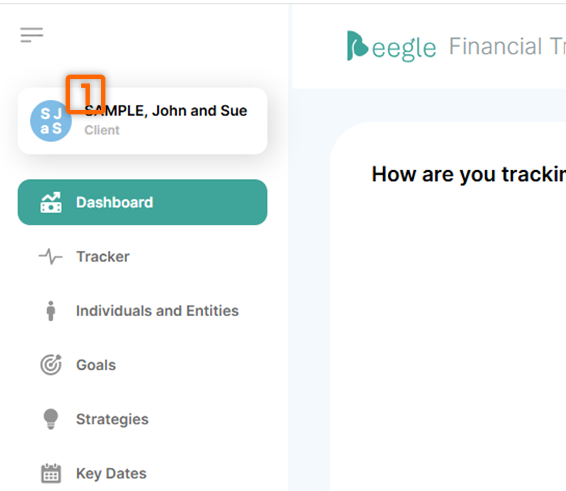
You can view a list of all client groups and their subscription status by navigating to Settings and then 'Billing & Subscriptions'.
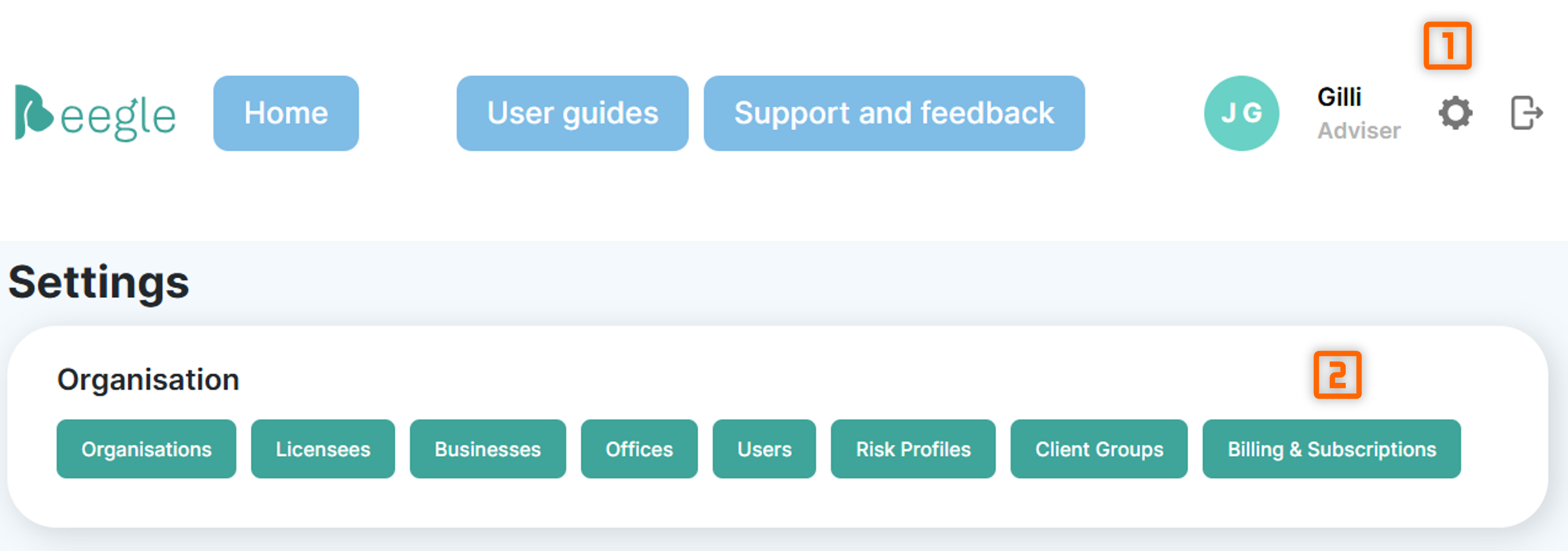
The meaning of each column in the list of client group subscriptions is as follows:
- Status
- Pending: Indicates a new client group which has never had a subscription enabled. The client group will be in a dormant/read-only state until a subscription is enabled.
- Active: Indicated the client group has an active subscription and full functionality apples to the client group.
- Dormant: The client group has a subscription in the past, which was cancelled. The client group is in a read-only state.
- Subscription Period
- Displays the commitment period during which a subscription cannot be cancelled.
- Refer to this guide for details about the commitment period, or the bottom of the page on Beegle.
- Auto-Renew
- N/A: Where a client group has never has a subscription enabled, 'N/A' will be displayed.
- Enabled: Indicated that the client group's subscription will automatically renew each month once they are outside the 12 month commitment period.
- Disabled: Indicates that the client group's subscription will be cancelled at the end of the current billing cycle, unless they are still in the 12 month commitment period. If still in the commitment period, the subscription will be cancelled as soon as it comes to an end.
Managing a Subscription
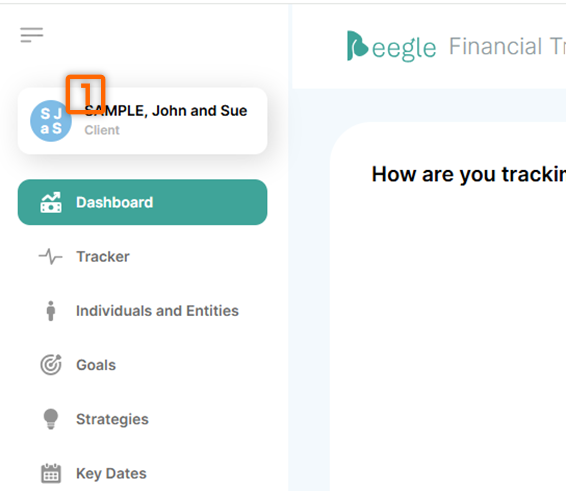
- Start by navigating to the client group record. This can be done by clicking the client group name on the 'Billing & Subscriptions' page where all subscriptions are listed (per above), or accessing the client group record directly by clicking the circle if you are already viewing the client group:
- On this page there is a section titled 'Subscription Status'.
- Depending on the current subscription status (as defined above), you have the following options:
- Pending Subscription
- There is a button to 'Activate Subscription'
- Clicking the button will display a message detailing the implications and ask whether to proceed or not.
- Approving the subscription puts it in place, with a commitment period, and automatically sets Auto-Renew to enabled (as defined above).
- Active Subscription
- The only option available for an active subscription is enabling or disabling the Auto-Renew setting, which essentially cancels or keeps the subscription going, as defined above.
- Dormant Subscription
- There is a button to 'Reactivate Subscription'
- Clicking this button essentially does the same as the 'Activate Subscription' button noted above.
- Pending Subscription