
RetireMap
The integration with Retiremap allows users to import financial projections for a client group from Retiremap to Beegle. Following is information on how to enable the integrations, how to link client groups between the software, and how to import projections for a particular client group.
1. RetireMap Setup
Before being able to pull data from RetireMap to Beegle, permissions need to be set up in RetireMap. To do this:
-
-
- Log in to your RetireMap account and on the left Menu expand 'Integrations' and select 'Connectors'.
- Find Beegle and click the link to get started.
- On the form that loads:
- Give a unique name to the integration, so you can identify it in RetireMap
- Optionally add a description.
- For scope, select at least 'Read' to allow Beegle to collect projection information from RetireMap.
- For 'Access to Clients' select 'All Clients in my Practice', unless there is a reason you only want one adviser's clients to be accessible to Beegle.
- Set an expiration date for the integration.
- Click 'Generate API Token'.
- Save the API token that is generated and displayed on screen somewhere safe.
-
You will not be able to view the API token once you navigate away from the setup page from step 5 above. Make sure to store it somewhere before closing the page.
2. Enable RetireMap in Beegle
Once you have your RetireMap API key from step one, it needs to be added to Beegle by a user with administration privileges.
If the RetireMap API key was set up with an expiry date, this step will need to be done again when the key expires.
3. Connect the Client Group
One the RetireMap integration is established for your organisation, you can link Beegle client groups to Client Groups in RetireMap. This connection only needs to be done once.
To make the connection:
-
-
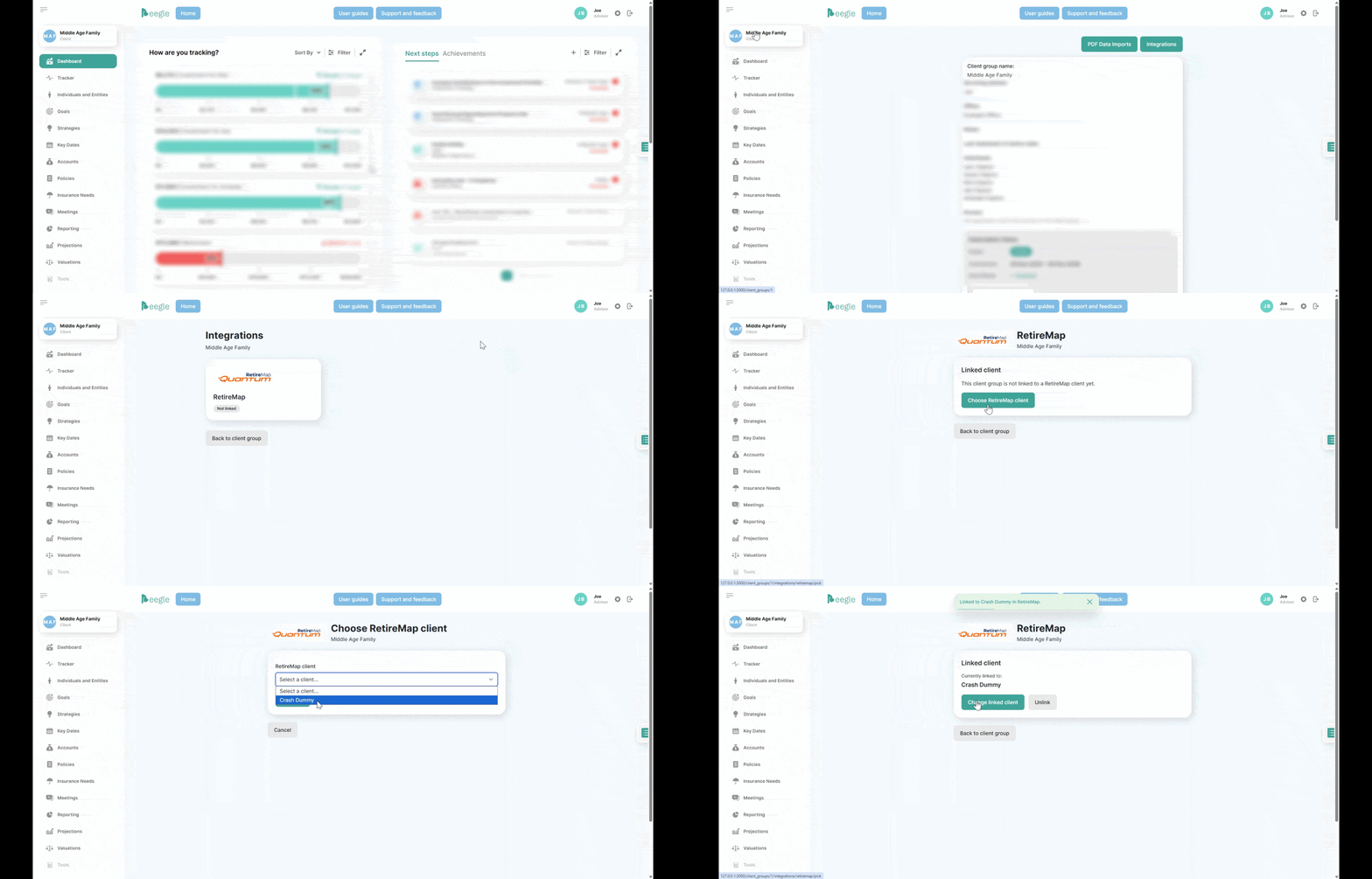
- Start from the Beegle client group you want to link to RetireMap
- Go to the client group settings
- Click the 'Integrations' button
- Select the RetireMap integration
- Click 'Choose RetireMap client'
- From the dropdown select the appropriate RetireMap client and click 'Save link'
-
Here is a clip of the process:
Each client group in Beegle can only be linked to one client group in Retiremap.
Each client group from RetireMap can only be linked to one client group in Beegle. This is essential for maintaining privacy in line with Beegle's client group access controls. Once a RetireMap client is linked to a Beegle client group users will not be able to import that RetireMap client anywhere else in the Beegle app, thereby preventing them from viewing financial/projection data for a client group the user should not have access to. It is therefore crucial that any client groups with access restrictions be linked to their associated RetireMap client group as soon as possible.
4. Import Projections
Once a client group is connected to RetireMap, projections can be imported into Beegle. The process is as follows:
-
-
- Set up all the projection records you would like to track in Beegle, per Step 2 of Creating Projections. This ensures the RetireMapprojections are appropriately recorded and linked to goals in Beegle.
- On the projections page, click the 'Import from RetireMap' button. If the button is greyed out you can howe on it to see the reason it is not available.
- Follow the wizard to link the RetireMap projections to the Beegle projected accounts set up in step 1.
-
Important Considerations
SMSF in RetireMap
Our integration with RetireMap does not report non-property SMSF investment separately. Therefore it is best to import a clients superannuation balance as this incorporates the member's entitlement to the SMSF's net assets inclusive of all holdings.holdings and property. With the member balance imported the SMSF property or other assets and liabilities should not be importedimported, as it will result in double counting.
An exception is if the SMSF only holds property, in which case the SMSF assets can be imported instead of the member account balances.
Consolidating Projections
You can assign multiple RetireMap projected accounts to a single projection account in Beegle. In this case the RetireMap projections are totaled, with that total recorded in Beegle.
An example would be simply having 'John Super' as a projection in Beegle, and you would like to record John's Accumulation and future pension accounts together.
Existing Projection Values
For any Beegle Projection account being imported to, you have two options when it comes to handling any existing projection values in Beegle:
Replace all existing Beegle Projection values: This option will delete any existing projection values Beegle has for the account, and then import the values from RetireMap.
Keep Beegle projection values occurring before the start of the RetireMap projections: This option will find the earliest value from RetireMap, then delete any existing Beegle projection values after this date before importing from RetireMap. In this way historical projection values are preserved and only future values are replaced.